
Prerequisites and Account Context
Before selecting an account type, understand the foundational differences in how Windows implements each authentication approach.
Windows Versions and Account Availability
Both account types function across Windows 10 and Windows 11. Availability varies by edition: Home editions restrict certain features like BitLocker encryption to Microsoft accounts, while Professional and Enterprise editions support full functionality regardless of account type.
Initial Setup Considerations
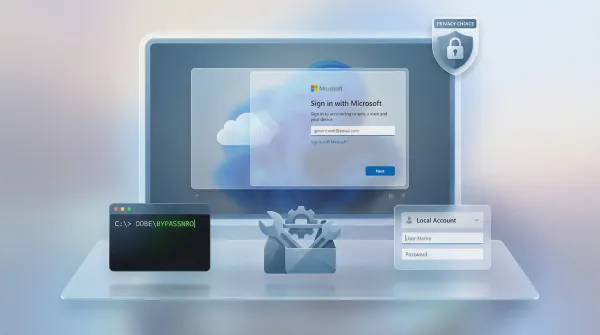
During Windows installation, Microsoft increasingly emphasizes Microsoft account creation, sometimes making local account creation intentionally obscure. However, both account types remain available through appropriate setup navigation or post-installation configuration.
Account Characteristics Overview
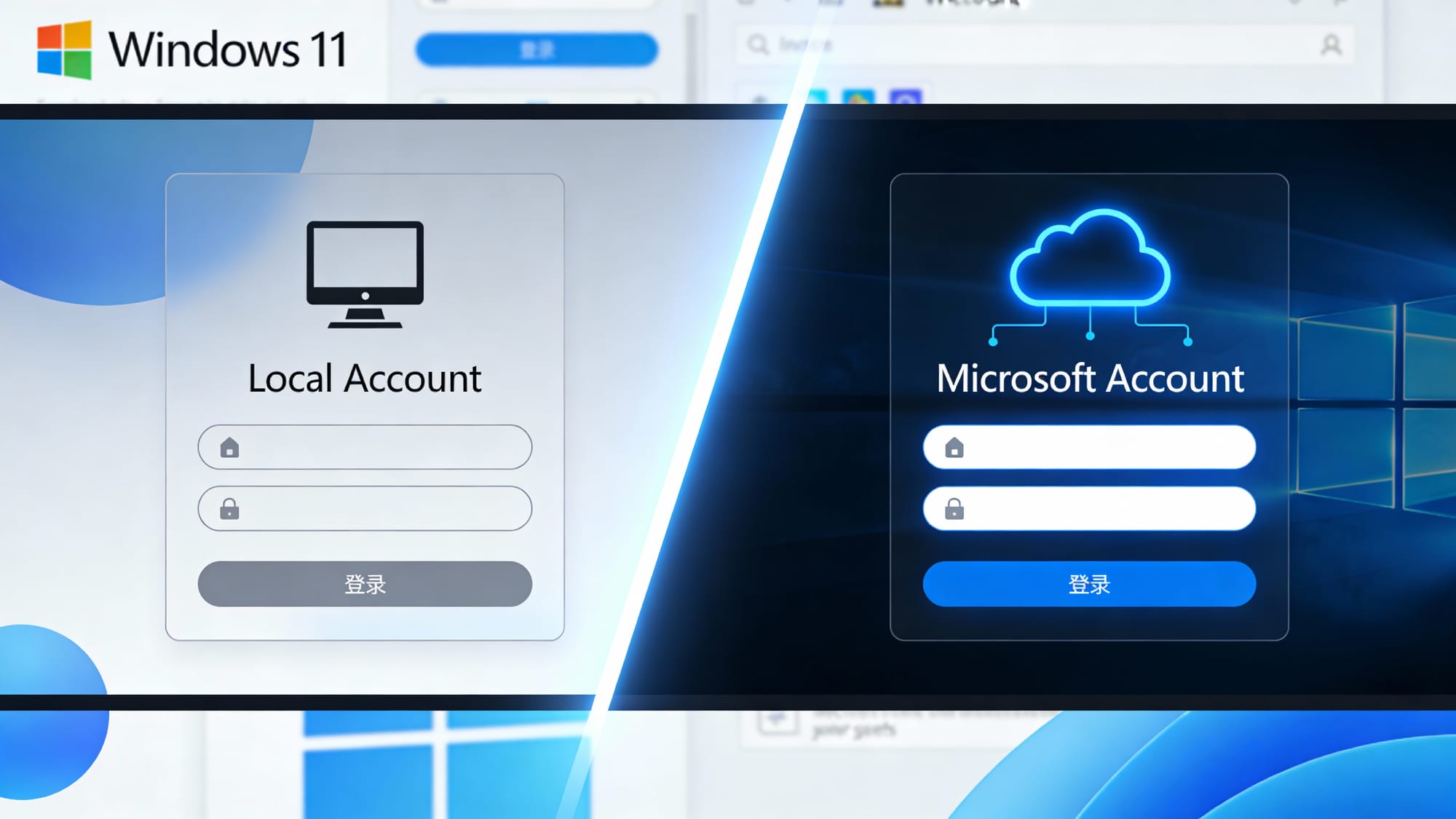
| Characteristic | Local Account | Microsoft Account |
|---|---|---|
| Internet requirement | No | Yes (initial setup) |
| Device scope | Single device | Multiple devices |
| Cloud sync | None | Full support |
| Data location | Device storage only | Device + Microsoft cloud |
| Authentication | Username + password | Email address + password |
| Services included | Windows OS only | Windows + Microsoft ecosystem |
Understanding Local Accounts
What Constitutes a Local Account
A local account represents the traditional Windows authentication mechanism where credentials exist exclusively on the individual computer. The account consists of a username (maximum 20 characters, alphanumeric and special characters except @) and optional password stored in the device's local security database.
Local accounts remain completely independent from cloud services, internet connectivity, or Microsoft's infrastructure. They provide single-device isolation where all user data, settings, and application preferences remain confined to that specific computer.
Local Account Advantages
Privacy and Data Isolation: No data transmission to Microsoft servers beyond Windows Update telemetry. Your usage patterns, files, and configurations remain locally stored without cloud synchronization or tracking. Organizations prioritizing data sovereignty particularly appreciate this characteristic.
Offline Functionality: Local accounts operate independently of internet connectivity. Users can sign in, work, and manage files without requiring network access or authentication server availability.
Administrative Control: Users can designate themselves as administrators with full system control rights. Particularly valuable in organizations where centralized management policies shouldn't constrain individual machines.
Multi-User Separation: Each local account maintains completely isolated environments. One user's files, settings, and applications remain entirely inaccessible to other local account users on the same machine.
Cost Efficiency: No subscription requirements or cloud storage dependencies. Local accounts remain completely free with no optional paid services.
Local Account Disadvantages
No Cloud Synchronization: Settings, files, and preferences exist exclusively on the device where created. Users with multiple computers must manually maintain consistency across machines. This limitation becomes increasingly frustrating as device counts increase.
Microsoft Store Restrictions: Local accounts access only free Microsoft Store applications. Premium, paid, or subscription-based applications remain unavailable without upgrading to a Microsoft account.
Application Incompatibility: Certain Microsoft applications (Microsoft Edge cloud sync, OneDrive, Microsoft 365 full integration) either don't work or operate with severely limited functionality with local accounts.
BitLocker Limitations: Windows 11 Home edition cannot use BitLocker encryption with local accounts. Professional and Enterprise editions support BitLocker but require manual key management rather than automatic cloud-based recovery key backup.
Windows Activation Concerns: After Windows reinstallation, local accounts lose associated activation information. Users must reactivate Windows through alternative methods, often requiring product key re-entry or Microsoft support contact.
Device Recovery Absence: No device backup or recovery capability integrates with local accounts. Users must implement third-party backup solutions for system recovery scenarios.
Guest Account Confusion: Note the distinction between local user accounts and the guest account. Guest accounts provide temporary, limited-privilege access requiring no authentication—fundamentally different from permanent local accounts and potentially less secure.
Understanding Microsoft Accounts
What Constitutes a Microsoft Account
A Microsoft account uses an email address (Outlook, Gmail, Yahoo, or other providers) and password for authentication. The account extends beyond Windows, enabling access to Microsoft's broader ecosystem including OneDrive, Xbox, Skype, Teams, Microsoft 365, and other services.
Microsoft accounts operate as cloud-connected identities where Microsoft stores account information, preferences, and recovery data. Users authenticate through Microsoft's cloud infrastructure rather than local databases.
Microsoft Account Advantages
Cloud Synchronization: Settings, wallpapers, browser preferences, and certain files automatically synchronize across all devices using the same Microsoft account. Users experience consistent environments regardless of which device they use.
Microsoft Store Integration: Full Microsoft Store access including premium applications, games, subscriptions, and paid software. Application updates synchronize across devices with saved game progress and settings automatically transferred.
Integrated Services: Seamless integration with Outlook mail, OneDrive cloud storage (5 GB free), Skype, Teams, Xbox services, and Microsoft 365. Single sign-on eliminates repeated authentication across Microsoft properties.
Device Security: Windows automatically backs up BitLocker recovery keys to Microsoft account data when enabled. This backup ensures system recovery even if the local recovery key is lost.
Windows Activation: Microsoft accounts store Windows activation information. After reinstallation, Windows automatically reactivates with the associated Microsoft account without requiring manual product key entry.
Find My Device: Microsoft accounts enable device tracking, remote lock, and data wipe capabilities for lost or stolen computers.
Family Safety: Parental controls and family account management operate exclusively through Microsoft accounts.
Automatic Backups: Windows backup and recovery services integrate with Microsoft accounts for cloud-based restoration.
Microsoft Account Disadvantages
Privacy Considerations: Microsoft receives extensive user data including usage patterns, browsing habits (via Edge), search queries (via Bing), and application preferences. This data collection enables Microsoft services but concerns privacy-conscious users.
Mandatory Internet Connectivity: Initial account setup requires active internet connection. While accounts can subsequently function offline, the first-time setup experience requires network access.
Account Compromise Risk: Cloud-connected accounts face hacking risks. Strong passwords and two-factor authentication become essential security measures.
Data Residency Concerns: User data stored on Microsoft servers may raise compliance or regulatory concerns for certain organizations or jurisdictions.
Forced Service Integration: Users cannot completely opt-out of Microsoft service integration. Certain notifications, updates, and features push Microsoft services regardless of user preference.
Account Recovery Dependency: If account credentials are lost or compromised, recovering access becomes dependent on Microsoft's account recovery processes rather than local knowledge.
Feature Comparison Table
| Feature | Local Account | Microsoft Account |
|---|---|---|
| Security & Privacy | ||
| Password protection | Yes | Yes |
| Two-factor authentication | No | Yes |
| BitLocker (Professional+) | Yes (manual) | Yes (automatic) |
| Privacy-centric | Yes | No |
| Data collection | Minimal | Extensive |
| Cloud & Sync | ||
| Cloud storage (free) | No | 5 GB OneDrive |
| Settings sync | No | Yes |
| Application sync | No | Yes |
| Device backup | No (third-party) | Yes |
| Applications & Services | ||
| Microsoft Store | Free only | Full access |
| OneDrive | No | Yes |
| Microsoft 365 | Limited | Full |
| Skype/Teams | No | Yes |
| Xbox services | No | Yes |
| Administration | ||
| Multi-device sync | No | Yes |
| Remote recovery | No | Yes |
| Family controls | No | Yes |
| Windows activation | Manual | Automatic |
Decision Framework: Choosing Your Account Type
Evaluate Your Usage Pattern
Choose Local Account if:
You use a single computer and have no need for multi-device synchronization. You prioritize privacy and want to minimize data sharing with Microsoft. You work with sensitive data where local-only storage is required. You prefer complete offline independence without cloud dependencies. You plan to use exclusively non-Microsoft applications (LibreOffice, GIMP, third-party browsers, etc.).
Choose Microsoft Account if:
You use multiple Windows devices and want synchronized settings across them. You require Microsoft Store access for premium applications or games. You use Microsoft 365, OneDrive, or other Microsoft services regularly. You want automatic Windows backup and device recovery capabilities. You plan using Skype, Teams, or Xbox services. You require family account management or parental controls.
Hybrid Approach Possibility
Organizations can implement hybrid models: create a local administrative account for system management, then create a secondary Microsoft account for cloud services and synchronization. This approach combines local administrative control with cloud service integration.
Troubleshooting Common Account Issues
Cannot Create Local Account During Windows 11 Setup
Symptom: Windows 11 installation lacks obvious local account creation option.
Diagnosis: Microsoft intentionally obscures local account creation during standard setup flow.
Resolution: During account setup, click "Create a local account instead." If this option doesn't appear, disconnect network adapter temporarily to bypass internet requirement, allowing local account creation. Reconnect network after account creation.
Local Account BitLocker Encryption Limitations
Symptom: BitLocker unavailable or shows warning with local account on Professional edition.
Diagnosis: Windows 11 requires Microsoft account for automatic BitLocker key backup on newer builds.
Resolution: Upgrade account to Microsoft type, or implement manual BitLocker recovery key backup procedures.
Microsoft Account Won't Synchronize Settings
Symptom: Settings changed on one device don't appear on other devices.
Diagnosis: Sync settings disabled in account preferences or account requires re-authentication.
Resolution: Open Settings > Accounts > Sync your settings and enable sync toggle. Verify internet connectivity. Sign out and sign back in with Microsoft account credentials.
Lost Microsoft Account Access
Symptom: Cannot remember Microsoft account email or password.
Diagnosis: Account credentials forgotten or email address inaccessible.
Resolution: Visit account.microsoft.com and follow account recovery procedures. Provide alternative email or phone number on file. In some cases, create local administrator account and use it to reset Windows.
Pro Tip: Document Microsoft account credentials and recovery contact information immediately after account creation, storing securely in password manager.
Best Practices for Account Management
Security Hardening for Microsoft Accounts
Enable two-factor authentication through Settings > Accounts > Security options. Use authenticator app (Microsoft Authenticator, Google Authenticator) rather than SMS-based codes for stronger security. Regularly review connected devices and remove unused or unrecognized computers.
Establish strong passwords exceeding 12 characters, combining uppercase, lowercase, numbers, and special characters. Consider passkeys as replacement for traditional passwords where available.
Local Account Security Enhancement
While local accounts don't support two-factor authentication, implement CTRL+ALT+DELETE requirement at login through Group Policy (Windows Pro+). Configure automatic screen locking after inactivity period. Regularly change local account passwords to prevent credential compromise.
Multi-Device Management
For organizations deploying both account types, maintain clear documentation of which account type serves specific purposes. Establish naming conventions distinguishing administrative local accounts from user accounts. For hybrid scenarios, grant local administrative accounts intentionally restricted permissions when possible.
Data Backup Strategy
Local account users must implement third-party backup solutions. Automated tools backing up Documents, Desktop, and Downloads folders to external storage or cloud services (Backblaze, Acronis) protect against data loss.
Microsoft account users should still implement additional backups beyond cloud sync for critical data, as some file categories don't synchronize automatically.
Final Verification and Account Testing
Validate Account Type
Access Settings > Accounts > Your info and observe account designation. "Local account" indicates offline mode; email address indicates Microsoft account connection.
Alternatively, open Command Prompt and execute:
net user %username%
Output displays whether account is a local user or connected to Microsoft online services.
Test Synchronization Features
For Microsoft accounts, change system settings on one device (wallpaper, mouse preferences, notification settings) and verify appearance on additional devices after waiting 15 minutes and refreshing.
Check OneDrive file synchronization by saving file to OneDrive on one device and verifying accessibility from second device.
Verify Security Settings
For Microsoft accounts, visit account.microsoft.com and confirm two-factor authentication enabled. Review device list and remove unrecognized entries.
For local accounts, verify password protection active by attempting to login with incorrect password—access should be denied.
Conclusion
Windows local and Microsoft accounts serve distinctly different user philosophies. Local accounts prioritize privacy, independence, and offline functionality at the cost of cloud synchronization and ecosystem integration. Microsoft accounts sacrifice some privacy for convenience, cloud connectivity, and access to Microsoft's broad service ecosystem.
The optimal choice depends entirely on individual circumstances: privacy priorities, multi-device usage patterns, software dependencies, and tolerance for data sharing. Hybrid approaches combining both account types enable balancing administrative control with cloud service benefits.
Organizations should establish clear account type policies addressing regulatory requirements, privacy expectations, and operational needs. IT administrators should document account management procedures and communicate selection rationale to users.
Related guides: Windows 11 security hardening, Microsoft account recovery procedures, and multi-device synchronization setup.
Sources
-
Microsoft Learn – Windows Account Types and Sign-In Options – https://learn.microsoft.com/en-us/windows/security/identity-protection/access-control/local-accounts
-
Windows Central – Microsoft Explains Why Local Accounts Are Better on Windows 11 – https://www.windowscentral.com/software-apps/windows-11/microsoft-explains-why-its-better-to-use-a-local-account-on-windows-11
-
Ask Leo! – Local Accounts vs. Microsoft Accounts: Which is Better? – https://askleo.com/173892
-
Pureinfotech – How to Manage Sync Settings Across Windows 10 and Windows 11 Devices – https://pureinfotech.com/manage-sync-settings-windows-10/