

Introduction
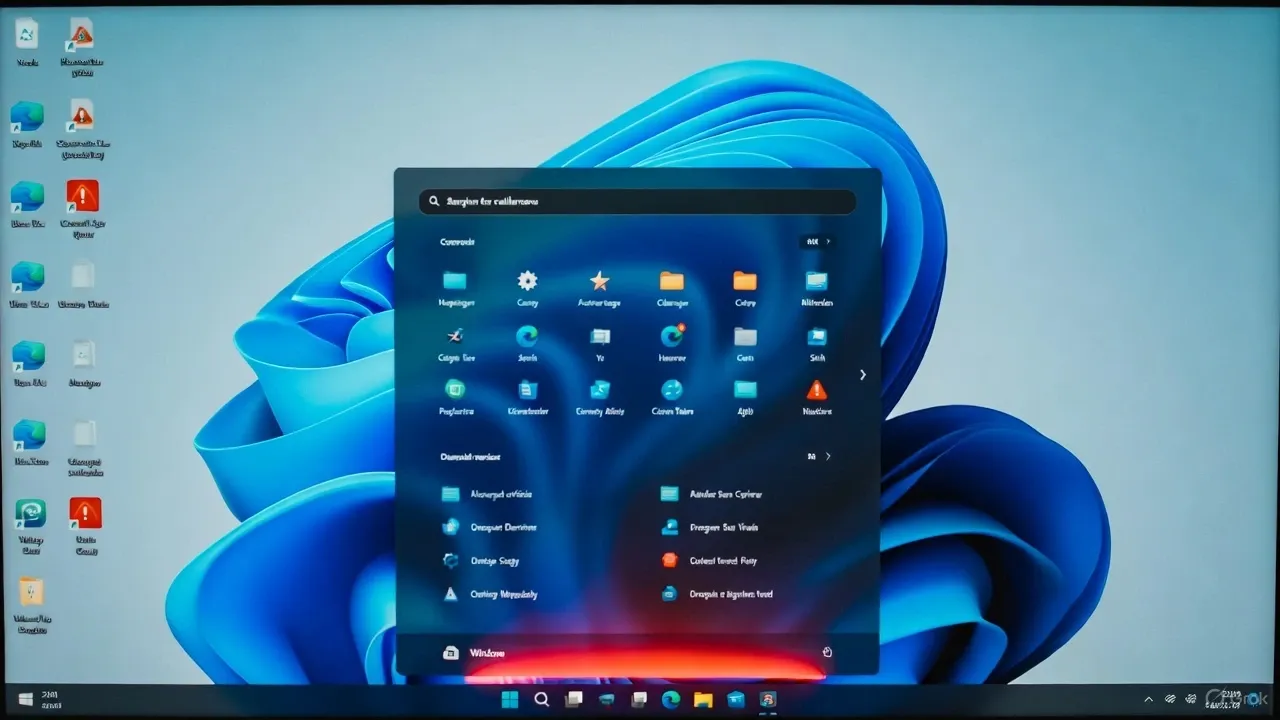
A critical usability issue has emerged in Windows 11 24H2, leaving thousands of users unable to access the Start Menu or Taskbar. After installing the most recent cumulative update, systems boot normally but fail to load the shell interface, making it impossible to launch applications or navigate the desktop environment.
Reports surfaced across Microsoft’s Feedback Hub, Reddit, and IT forums in early December 2025, showing a pattern of the same symptoms: a frozen taskbar, missing icons, and a Start Menu that never opens. For some, even pressing Ctrl + Alt + Del provides no relief.
What Happens
After applying the update, affected systems start successfully and display the desktop wallpaper, but both the Start Menu and Taskbar remain unresponsive. Keyboard shortcuts like Win + R or Win + X fail to function, and the Explorer.exe process either crashes or fails to initialize.
Some users also reported missing system tray icons, invisible network and volume indicators, and a blank Quick Settings panel. Restarting Windows Explorer through Task Manager temporarily restores functionality for some, but the issue reappears on the next reboot.
Root Cause and Analysis
Preliminary investigations suggest that the problem may be related to a corrupted Windows Shell Experience Host or misaligned registry entries introduced by the update. Several telemetry reports indicate that system personalization or accessibility configurations can trigger a startup conflict between the Explorer shell and the Task Host process.
This bug appears more frequently on devices that recently upgraded from version 23H2 to 24H2, especially where third-party shell extensions or UI customization utilities were installed.
Temporary Fixes and Workarounds
Until Microsoft releases a corrective update, affected users can attempt the following solutions to regain functionality:
1. Restart Windows Explorer
Press Ctrl + Shift + Esc to open Task Manager. Under the “Processes” tab, locate Windows Explorer, select it, and click Restart.
2. Create a New User Profile
Some reports confirm that the issue is profile-specific. Creating a new local or Microsoft account can temporarily restore normal behavior.
3. Run System File Checker (SFC)
Open a command prompt (via Task Manager > Run New Task > cmd) and run:sfc /scannow
Follow with:DISM /Online /Cleanup-Image /RestoreHealth
4. Uninstall the Problematic Update
If none of the above work, boot into Safe Mode and uninstall the latest cumulative update via Control Panel > Programs > View installed updates.
These methods restore usability for many users until Microsoft provides an official patch.
Microsoft’s Response
Microsoft has acknowledged the issue on its Windows Health Dashboard, confirming that a small percentage of devices running 24H2 experience Start Menu and Taskbar failures after installing the latest update. The company is currently rolling out a Known Issue Rollback (KIR) through Windows Update, which automatically reverts the faulty component configuration.
Microsoft also recommends avoiding manual registry edits and waiting for the KIR to propagate within 24 to 48 hours for consumer devices, or deploying the KIR Group Policy package for managed enterprise systems.
Impact on Users and Enterprises
For individual users, this bug is disruptive but recoverable. However, in enterprise environments where remote access or endpoint management depends on user shell initialization, it can cause significant downtime. Systems that fail to load Explorer.exe cannot execute Intune policies or run startup scripts, complicating recovery operations.
IT teams should use remote management tools to push PowerShell scripts that restart or repair the shell process automatically until the KIR resolves the problem.
Prevention and Best Practices
Administrators are urged to stage updates in testing rings before organization-wide deployment. Optional and newly released cumulative updates should remain in pilot channels for at least 7 days. Periodic system restore point creation is also recommended prior to feature updates like 24H2.
Avoid using unsupported UI modifiers, Start Menu replacements, or shell-enhancement apps, as they frequently interfere with Windows Explorer initialization after large version transitions.
Conclusion
The Windows 11 24H2 Start Menu and Taskbar bug underscores the importance of cautious rollout strategies and proactive recovery planning. While Microsoft has issued an automatic rollback through Windows Update, users should remain patient as the fix propagates globally.
If you’re affected, restarting Windows Explorer or uninstalling the recent update are the quickest workarounds. Microsoft is expected to include a permanent solution in the next cumulative patch.
Sources
Microsoft Health Dashboard – Known Issue Rollback details for Windows 11 24H2 shell issue