
Prerequisites and Environment Requirements
Before beginning the conversion process, ensure your system meets the following conditions.
System and Access Requirements
Your server must run Windows Server 2025 evaluation edition—the conversion process only works when the current installation carries the evaluation designation. You need local administrative privileges or equivalent credentials with User Access Control (UAC) enabled.
Network connectivity to Microsoft licensing servers is required for key validation. If the server operates in an air-gapped environment, arrange alternative activation methods through your organization's Key Management Server (KMS) or configure offline activation.
License Availability
Obtain your Windows Server 2025 product key before beginning. The key must match your target edition: Standard, Datacenter, or Essentials. Ensure the key is legitimate and unused. Volume-licensed keys require KMS activation; retail keys can activate online or through phone-based channels.
Backup and Documentation
Create a full system backup before initiating conversion. While the process is generally non-destructive, reverting to backup represents the fastest recovery path if complications emerge. Document the current server configuration, installed roles, and critical settings for post-conversion validation.
Supported Windows Server 2025 Editions
Conversion works across all Windows Server 2025 editions:
- Windows Server 2025 Standard Evaluation → Standard Full
- Windows Server 2025 Datacenter Evaluation → Datacenter Full
- Windows Server 2025 Essentials Evaluation → Essentials Full
Cross-edition upgrades (Standard to Datacenter) are possible but require licensing considerations discussed in later sections.
Step-by-Step Conversion Tutorial
Step 1: Verify Current Edition and Remaining Evaluation Time
Begin by confirming the current edition and evaluating the remaining evaluation period before proceeding with conversion.
Open PowerShell as Administrator. Right-click the Windows Start menu and select "Terminal (Admin)" or "Windows PowerShell (Admin)". Run the following command:
DISM /Online /Get-CurrentEdition
The output displays your current edition status. Evaluation editions display with "Evaluation" designation (e.g., "ServerStandard Evaluation"). Standard production editions show without the evaluation label.
Additionally, system properties display remaining evaluation time. Access this through Settings > System > About or by running:
slmgr -dli
The output shows licensing details including grace period countdown. Evaluation periods typically provide 180 days before transition to Restricted Functional Mode (RFM), where the server functions with limited capabilities.
Step 2: Review Available Target Editions
Windows Server 2025 evaluation can convert to matching full editions or, with proper licensing, to higher tiers. Identify which editions your license permits.
Run this command to display conversion options:
DISM /Online /Get-TargetEditions
Output lists eligible target editions for your current installation. For example, Evaluation Standard can convert to Standard or Datacenter; Evaluation Datacenter can only convert to Datacenter (downgrade to Standard requires separate processes).
Document the output for reference during the conversion step.
Step 3: Prepare for Conversion with System Snapshot
Create a system restore point before executing edition changes. PowerShell administrators can automate this:
Checkpoint-Computer -Description "Pre-Windows Server 2025 Evaluation Conversion" -RestorePointType "MODIFY_SETTINGS"
A restore point provides a fast recovery option if the conversion triggers unforeseen compatibility issues.
Step 4: Execute the Edition Conversion Command
The DISM command performs the actual edition conversion. The command syntax varies by target edition and whether using a KMS or retail product key.
For Retail Product Keys (Online Activation)
DISM /Online /Set-Edition:ServerStandard /ProductKey:XXXXX-XXXXX-XXXXX-XXXXX-XXXXX /AcceptEula
Replace "ServerStandard" with your target edition: ServerStandard, ServerDatacenter, or ServerEssentials. Replace the X's with your actual product key.
The /AcceptEula flag automatically accepts the End User License Agreement; omit this for interactive prompts.
For KMS Activation Environments
Organizations using Key Management Servers for volume licensing first install the KMS product key, then activate through the KMS server:
slmgr -ipk XXXXX-XXXXX-XXXXX-XXXXX-XXXXX
Replace the key placeholder with your KMS client setup key (available from Microsoft's KMS activation documentation).
For direct DISM conversion with KMS (without manual slmgr commands):
DISM /Online /Set-Edition:ServerDatacenter /ProductKey:XXXXX-XXXXX-XXXXX-XXXXX-XXXXX /AcceptEula
The conversion process begins immediately. Progress displays during execution. The process typically completes in 5–30 minutes depending on system resources and disk I/O performance.
Step 5: Reboot the Server for Changes to Take Effect
Upon successful conversion command completion, Windows prompts for a server restart. Type "Y" at the prompt or initiate reboot manually:
Restart-Computer
The server restarts and applies the edition changes. Services remain stopped during the conversion restart cycle. Perform this reboot during a maintenance window to avoid service disruption.
Post-reboot, Windows boots normally with the new edition active. The conversion completes automatically on restart.
Step 6: Verify Conversion Success and Activate License
After restart, verify the edition change and ensure the product key activated successfully.
Open PowerShell as Administrator and run:
DISM /Online /Get-CurrentEdition
Output should display your target edition without "Evaluation" designation. For example: "ServerStandard" instead of "ServerStandard Evaluation".
Check licensing status:
slmgr -dli
Output displays activation status. Successful activation shows:
- License Status: Initial Grace Period → Licensed (if already activated)
- Volume Activation → KMS or Retail Key
- Days Remaining: 180 (evaluation) → Unlimited (full license)
If the key does not automatically activate online, manually trigger activation:
slmgr -ato
For KMS environments, ensure the server can reach the KMS server:
slmgr -skms [KMS-Server-FQDN or IP]:1688
Replace bracketed text with your KMS server details. Then activate:
slmgr -ato
Step 7: Validate System Functionality Post-Conversion
After successful conversion and activation, verify that installed roles, services, and applications function correctly.
Check that all installed roles remain active:
Get-WindowsFeature | Where-Object {$_.InstallState -eq "Installed"} | Format-Table Name, InstallState
This command lists all installed features. Confirm that your critical roles (Active Directory, Hyper-V, File Services, etc.) remain installed and accessible.
Test key services:
- If this is a domain controller, perform Active Directory replication tests
- If running Hyper-V, start and verify virtual machines
- If operating as a file server, test SMB share access
Log files located at C:\Windows\System32\Licenses contain licensing operation details for troubleshooting if needed.
Troubleshooting Common Issues
Product Key Not Accepted During Conversion
Symptom: DISM command returns error code or states the key is invalid.
Diagnosis: The key does not match the target edition, is already used, or contains typos.
Resolution: Verify the product key matches your licensed edition. Retry the DISM command with the correct key. Ensure no spaces or special characters appear in the key string.
For KMS keys, verify you are using a KMS client setup key (MAK keys will not work through DISM).
Server Enters Restricted Functional Mode After Conversion
Symptom: Licensing dialog appears with 30-day grace notification; server boots but system functions are restricted.
Diagnosis: The product key failed to activate, possibly due to network connectivity issues or KMS server unavailability.
Resolution: Verify internet connectivity if using online retail activation. For KMS, confirm KMS server reachability:
Test-NetConnection -ComputerName [KMS-Server-FQDN] -Port 1688
Manually attempt activation again through slmgr -ato. If issues persist, contact Microsoft support with your product key and error messages.
DISM Command Returns "Set-Edition Not Supported"
Symptom: DISM fails stating the edition change is not supported.
Diagnosis: You may be attempting a downgrade (Datacenter to Standard) or an unsupported cross-edition conversion.
Resolution: Verify your current and target editions align with conversion rules. Standard can upgrade to Datacenter; Datacenter cannot downgrade to Standard through this method.
For downgrades, consult Microsoft licensing terms. You may need to perform a fresh installation of the lower edition.
Significant Delay During Conversion Process
Symptom: Conversion command shows progress but takes over one hour.
Diagnosis: High disk I/O load or insufficient system resources slowing the process.
Resolution: Monitor system performance during conversion. Do not interrupt or restart the process—allow it to complete. Disable antivirus scanning of %windir%\WinSxS directory during conversion if possible.
Pro Tip: Schedule conversions during low-traffic maintenance windows when competing workloads won't consume system resources.
Best Practices for License Conversion
Plan for Compliance and Auditing
Document all license conversions in your Software Asset Management (SAM) system. Record the date, time, previous edition, target edition, and product key serial number (without exposing the full key) for audit purposes.
Maintain records of all Windows Server license purchases and deployments. This documentation proves compliance during license audits conducted by Microsoft or third-party auditors.
Implement Licensing Governance
Establish approval workflows requiring authorization before evaluation-to-production conversions. Unauthorized production deployments create compliance risks and unbudgeted expenses.
Use volume licensing agreements when deploying multiple servers. Step-up licenses allow cost-effective upgrades from Standard to Datacenter within the same agreement, simplifying license management.
Test Before Production Implementation
Never convert evaluation servers directly to production without validation. Conduct conversions in staging environments that mirror production configurations first. Verify role functionality, integrated applications, and dependent services operate correctly post-conversion.
Only convert production servers during planned maintenance windows after successful staging conversion validation.
Maintain Licensing Records
Track Software Assurance status for each license. Software Assurance entitles organizations to free version upgrades and downgrade rights. Organizations without Software Assurance face higher costs when upgrading from Standard to Datacenter or transitioning between versions.
Engage with Microsoft licensing specialists when planning large-scale deployments or upgrades. Volume licensing agreements often provide better economics than individual key purchases.
Final Verification and Validation
Execute this comprehensive validation checklist to confirm successful conversion.
Licensing Verification
Run the licensing status command and confirm:
Get-CimInstance -ClassName SoftwareLicensingProduct -Filter "PartialProductKey != null" | Select-Object -Property Description, LicenseStatus, PartialProductKey
Output should display your edition with LicenseStatus showing "1" (licensed) or "2" (initial grace period transitioning to licensed).
Services and Roles Validation
List critical services and confirm they operate normally:
Get-Service | Where-Object {$_.Status -eq "Running"} | Measure-Object
This command counts running services. Compare the count pre- and post-conversion to ensure no unexpected service stoppages occurred.
Event Log Analysis
Review the System event log for license-related entries:
Get-EventLog -LogName System -Source Kernel-PnP, Windows Update, Licensing | Sort-Object TimeGenerated -Descending | Select-Object -First 20 | Format-List
This displays recent licensing and update events. Successful conversions show licensing activation events without error entries.
System Information Display
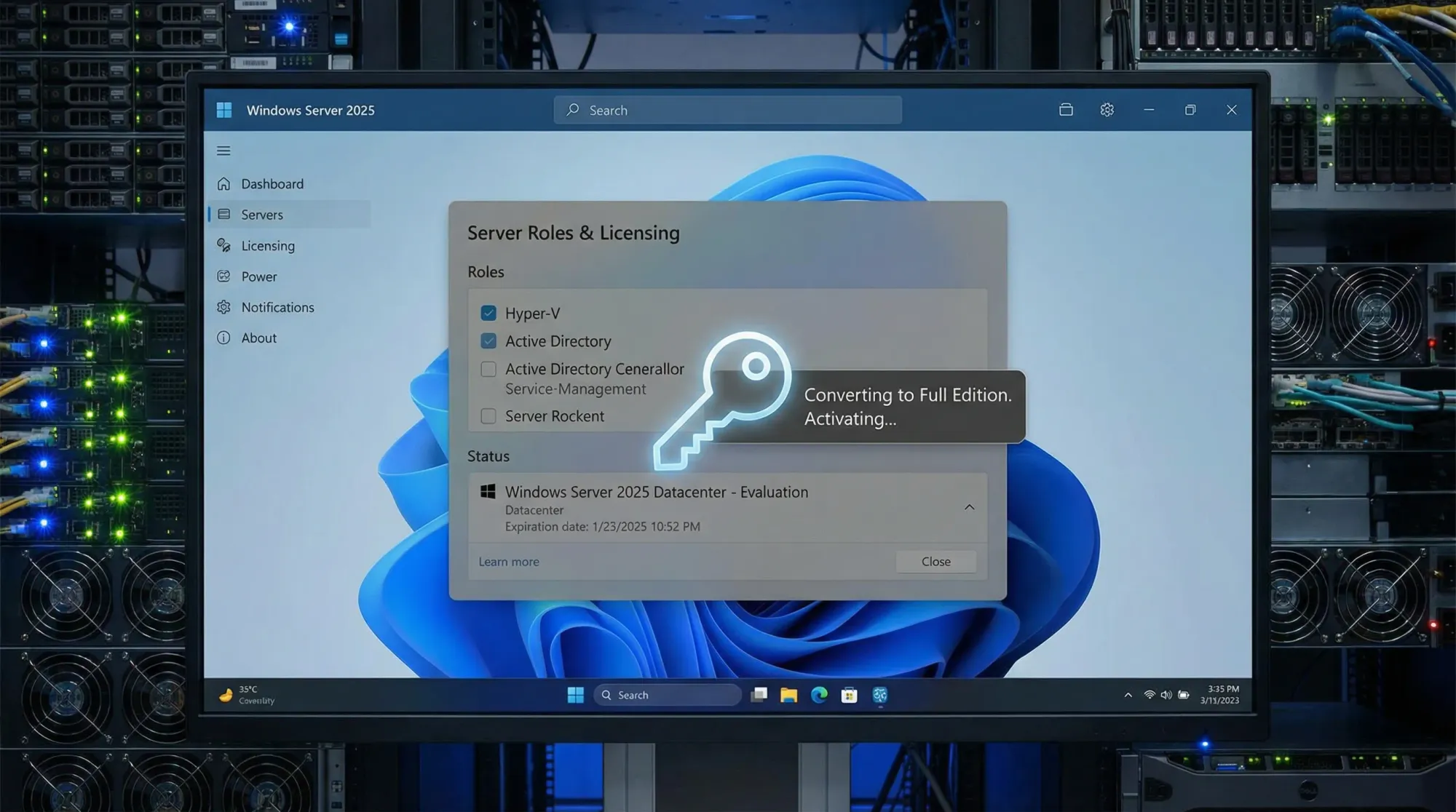
Access System Properties through Settings > About to verify the edition displays correctly without evaluation designation.
Conclusion
Converting Windows Server 2025 from evaluation to full licensed edition is a straightforward process when using the correct commands and product keys. The DISM-based conversion preserves installed roles, services, and applications while transitioning licensing status from temporary evaluation to permanent full production.
Organizations following this guide successfully transition lab or proof-of-concept installations to production deployments within 30–45 minutes of downtime. Post-conversion verification ensures compliance, functionality, and readiness for production workloads.
For organizations deploying multiple servers or operating at scale, consider volume licensing agreements to simplify key management and reduce per-server costs. Maintain comprehensive licensing records for audit compliance and future upgrade planning.
Related guides: Windows Server 2025 installation and deployment, KMS activation configuration for enterprise environments, and Windows Server licensing best practices.
Sources
-
Microsoft Learn – Upgrade and Conversion Options for Windows Server – https://learn.microsoft.com/en-us/windows-server/get-started/upgrade-conversion-options
-
Microsoft Learn – Windows Server 2025 KMS Client Setup Keys – https://learn.microsoft.com/en-us/windows-server/get-started/kms-client-activation-keys
-
Microsoft Licensing Guidance – Windows Server 2025 Licensing – https://www.microsoft.com/licensing/guidance/Windows-Server-2025
-
Licenseware – Microsoft Windows Server 2025 Licensing Guide – https://licenseware.io/microsoft-windows-server-2025-licensing-guide/