
Prerequisites and Environment Requirements
Before executing Get-ADUser commands, ensure your environment meets these foundational requirements.
Infrastructure and Access
You need network connectivity to an Active Directory domain and appropriate permissions to query the directory. Standard user accounts can retrieve basic user information; querying sensitive attributes may require domain administrator credentials.
Your computer must belong to the Active Directory domain or have network connectivity to domain controllers. Domain-joined Windows systems have Active Directory connectivity by default.
Active Directory Module Installation
The Get-ADUser cmdlet is part of the Active Directory module for PowerShell. Different Windows versions have different installation requirements:
| System Type | Installation Method | Command |
|---|---|---|
| Domain Controller | Pre-installed with AD DS role | No action needed |
| Member Server | RSAT-ADDS Windows Feature | Install-WindowsFeature -Name RSAT-ADDS |
| Windows 11/10 Client | RSAT capability via Settings or PowerShell | Add-WindowsCapability -Online -Name Rsat.ActiveDirectory.DS-LDS.Tools~~~~0.0.1.0 |
For Windows clients, you may alternatively download RSAT from Microsoft's website if PowerShell installation fails or you prefer graphical installation.
PowerShell Execution Policy
PowerShell's execution policy must allow script execution. Open PowerShell as Administrator and set the execution policy:
Set-ExecutionPolicy -ExecutionPolicy RemoteSigned -Scope CurrentUser
This setting allows locally authored scripts and signed remote scripts to run while blocking unsigned downloaded scripts—a reasonable security balance for administrative work.
Verifying Module Installation
Confirm the Active Directory module is available by running:
Get-Module -Name ActiveDirectory -ListAvailable
Output displays the module version and installation path. If the module doesn't appear, revisit the installation steps for your system type.
Step-by-Step Get-ADUser Tutorial
Step 1: Retrieve a Single User by Identity
Begin with the simplest Get-ADUser query: retrieving one specific user account.
Run the following command, replacing "username" with an actual user's SAM account name:
Get-ADUser -Identity username
The command returns basic user object properties including Name, ObjectClass, DistinguishedName, and ObjectGUID. This query identifies users by SAM account name (the value appearing in "User logon name" in Active Directory Users and Computers).
Alternative identity methods include distinguished name, SID, GUID, or user principal name:
# Query by distinguished name
Get-ADUser -Identity "CN=John Smith,OU=Sales,DC=contoso,DC=com"

# Query by SID
Get-ADUser -Identity "S-1-5-21-3623811015-3361044348-30300820-1013"

# Query by GUID
Get-ADUser -Identity "a8f8a4d5-3e21-47f1-8e9c-2d6f8b4a3c5e"
The command returns the same user object regardless of which identity format you provide.
Step 2: Query Users with Specific Properties
By default, Get-ADUser returns only basic properties. Retrieve additional attributes using the Properties parameter:
Get-ADUser -Identity john.smith -Properties EmailAddress, Title, Department, Manager
This returns the specified user with four additional properties displayed. For comprehensive information, use an asterisk to request all available properties:
Get-ADUser -Identity john.smith -Properties *
Warning: Requesting all properties increases query time and returns extensive data. For specific reporting tasks, list only the properties you need.
Step 3: Search Users with the Filter Parameter
Rather than querying individual users, search for multiple users matching criteria using the Filter parameter. Filter syntax uses PowerShell expression language enclosed in braces:
Get-ADUser -Filter {Enabled -eq $true}
This returns all enabled user accounts in the domain. The filter syntax uses operators like -eq (equals), -ne (not equals), -lt (less than), -gt (greater than), -like (wildcard), and logical operators -and and -or.
Retrieve specific properties alongside the filter:
Get-ADUser -Filter {Enabled -eq $true} -Properties Department | Select-Object Name, Department
This command returns only the Name and Department properties for all enabled users, simplifying output readability.
Step 4: Filter by Name or Partial Matches
Search for users by name patterns using wildcard filters:
Get-ADUser -Filter {Name -like "*Smith*"}
This returns all users whose names contain "Smith" anywhere in the string. The asterisk represents zero or more wildcard characters.
Combine name searches with other criteria:
Get-ADUser -Filter {Name -like "*Smith*" -and Enabled -eq $true} -Properties EmailAddress | Select-Object Name, EmailAddress
This retrieves enabled users with "Smith" in their name and displays their email addresses.
Step 5: Search Within Specific Organizational Units
By default, Get-ADUser searches the entire domain. Limit searches to specific organizational units with the SearchBase parameter:
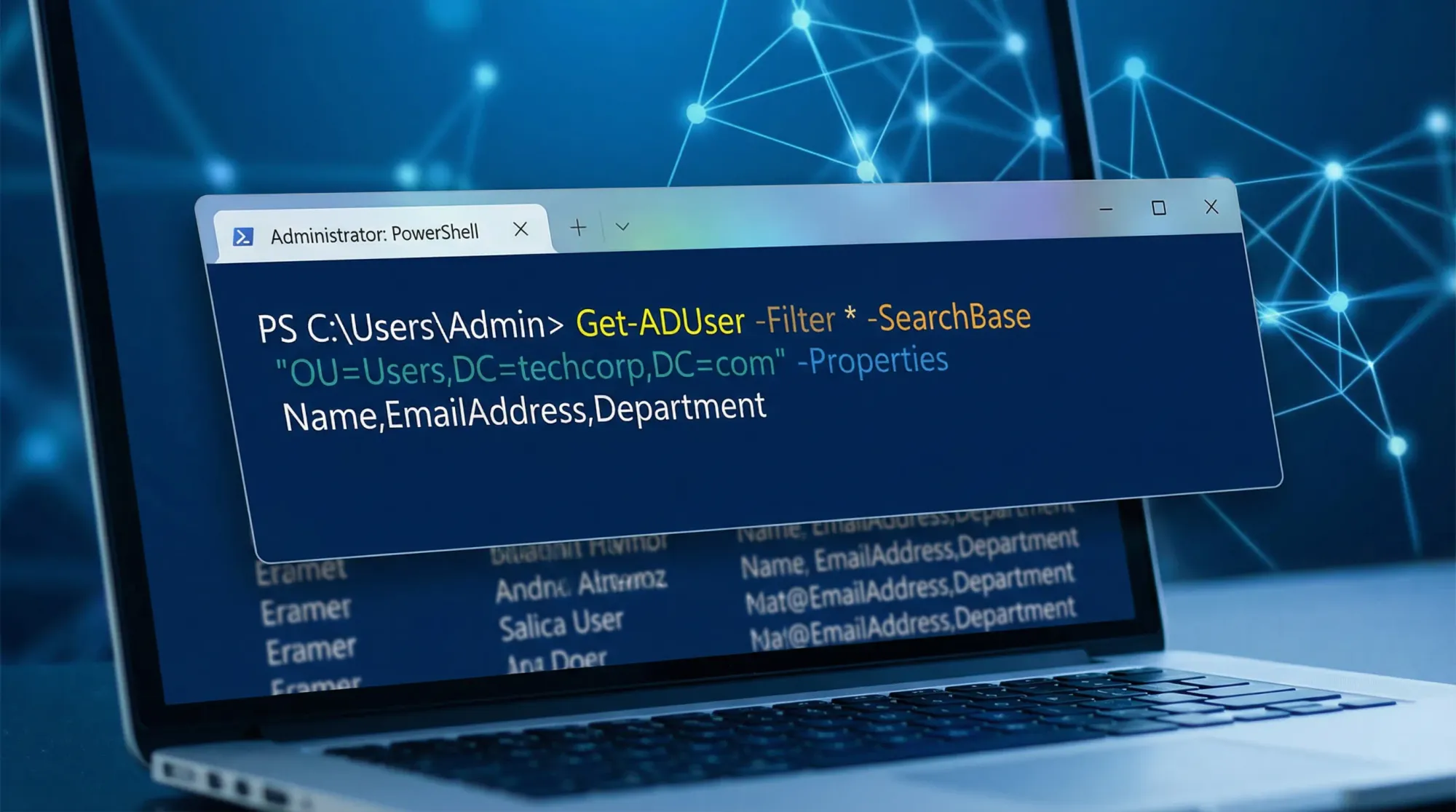
Get-ADUser -Filter * -SearchBase "OU=Sales,DC=contoso,DC=com"
The SearchBase parameter uses distinguished name format identifying the starting point for the search. Searches include the specified OU and all child OUs by default.
To search multiple OUs, run separate commands and combine results, or iterate through a list:
$OUs = @("OU=Sales,DC=contoso,DC=com", "OU=Marketing,DC=contoso,DC=com")
foreach ($OU in $OUs) {
    Get-ADUser -Filter * -SearchBase $OU
}
Step 6: Apply Multiple Filter Conditions
Combine multiple conditions using -and and -or operators:
Get-ADUser -Filter {Enabled -eq $true -and PasswordNeverExpires -eq $false} -Properties PasswordLastSet
This retrieves enabled users whose passwords expire, useful for identifying accounts requiring password policy updates.
Negate conditions using -not:
Get-ADUser -Filter {Name -notlike "*Test*" -and Enabled -eq $true}
This returns enabled users whose names don't contain "Test."
Step 7: Export User Data to CSV
Convert query results to CSV format for reporting or analysis:
Get-ADUser -Filter {Enabled -eq $true} -Properties EmailAddress, Title, Department |
Select-Object Name, SamAccountName, EmailAddress, Title, Department |
Export-Csv -Path "C:\Reports\ActiveUsers.csv" -NoTypeInformation
The Export-Csv cmdlet writes results to a file. The NoTypeInformation parameter removes PowerShell type information from the CSV header, creating clean, Excel-compatible files.
Troubleshooting Common Issues
"Get-ADUser: The term 'Get-ADUser' is not recognized"
Symptom: PowerShell returns an error stating the cmdlet doesn't exist.
Diagnosis: The Active Directory module is not installed on the system, or the module didn't load.
Resolution: First, verify the module exists:
Get-Module -Name ActiveDirectory -ListAvailable
If the module doesn't appear, install RSAT per the prerequisites section. If the module exists but PowerShell doesn't recognize it, explicitly import the module:
Import-Module -Name ActiveDirectory
Filter Returns No Results When Results Are Expected
Symptom: A filter query returns no users even though matching users should exist.
Diagnosis: Filter syntax errors are common. Quotation marks, operator spelling, or property names may be incorrect.
Resolution: Verify the filter syntax. PowerShell filter parameters require curly braces and specific operator formatting:
# Correct syntax
Get-ADUser -Filter {Department -eq "Sales"}

# Incorrect syntax (without braces or wrong quotes)
Get-ADUser -Filter Department -eq Sales
Test simpler filters first to isolate the issue:
Get-ADUser -Filter {Enabled -eq $true} | Measure-Object
This command counts enabled users, providing a baseline for filter validation.
"Access is Denied" Error
Symptom: Queries fail with "Access Denied" or "Insufficient Permissions" messages.
Diagnosis: Your user account lacks permissions to query the specific OU or retrieve sensitive attributes.
Resolution: Run PowerShell as Administrator or provide alternate credentials:
$Cred = Get-Credential
Get-ADUser -Identity username -Credential $Cred
The Get-Credential cmdlet prompts for username and password, allowing queries using elevated credentials.
Searches Return Unexpectedly Large Result Sets
Symptom: Simple filter queries return thousands of results.
Diagnosis: Filter conditions are too broad or the filter is missing intended restrictions.
Resolution: Refine filters to be more specific. Combine multiple conditions:
# Too broad
Get-ADUser -Filter *

# More specific
Get-ADUser -Filter {Enabled -eq $true -and LastLogonDate -gt (Get-Date).AddDays(-90)}
This second example returns only active users who logged in within the last 90 days.
Pro Tip: Use Measure-Object to count results before retrieving full data:
Get-ADUser -Filter {Enabled -eq $true} | Measure-Object
Best Practices and Advanced Techniques
Use Specific Properties, Not Wildcards
Requesting all properties with -Properties * is convenient but inefficient at scale. For large domains, explicitly list needed properties:
# Inefficient for 1000+ users
Get-ADUser -Filter * -Properties * | Select-Object Name, Email

# Efficient approach
Get-ADUser -Filter * -Properties EmailAddress | Select-Object Name, EmailAddress
The second approach reduces query overhead and network traffic.
Implement Credential Delegation for Automation
When scheduling automated Get-ADUser queries, store credentials securely rather than hardcoding them:
# Save credentials securely
$Cred = Get-Credential
$Cred | Export-Clixml -Path "C:\Admin\Credentials.xml"

# Later, load credentials from file
$Cred = Import-Clixml -Path "C:\Admin\Credentials.xml"
Get-ADUser -Filter * -Credential $Cred
IMPORTANT: Store XML credential files in secure locations accessible only to authorized accounts.
Create Reusable Functions for Common Queries
Encapsulate frequently used queries into functions:
function Get-InactiveADUsers {
    param([int]$DaysInactive = 90)
    $Date = (Get-Date).AddDays(-$DaysInactive)
    Get-ADUser -Filter {LastLogonDate -lt $Date -and Enabled -eq $true} -Properties LastLogonDate
}

# Usage
Get-InactiveADUsers -DaysInactive 60
This function retrieves users inactive for 60 days, making the query reusable and readable.
Use LDAPFilter for Complex Searches
For very complex queries, LDAP filter syntax provides additional power:
Get-ADUser -LDAPFilter "(&(objectClass=user)(|(cn=Smith)(cn=Jones)))" -Properties *
LDAP filters use RFC-compliant syntax and work well for complex logical combinations that PowerShell filter syntax struggles to express clearly.
Schedule Regular Reporting with Task Scheduler
Automate Get-ADUser reports by scheduling PowerShell scripts through Windows Task Scheduler. Create a script file:
# Filename: C:\Scripts\ADUserReport.ps1
$Date = Get-Date -Format "yyyyMMdd"
$OutPath = "C:\Reports\ADUsers_$Date.csv"
Get-ADUser -Filter {Enabled -eq $true} -Properties EmailAddress, Title, Department |
    Select-Object Name, SamAccountName, EmailAddress, Title, Department |
    Export-Csv -Path $OutPath -NoTypeInformation
Schedule this script to run daily or weekly through Task Scheduler using a service account with appropriate AD permissions.
Final Verification and Validation
Confirm Query Results Accuracy
After executing Get-ADUser queries, validate that results match expectations. Compare query counts with known user populations:
# Count total users
$TotalUsers = Get-ADUser -Filter * | Measure-Object
Write-Output "Total users in domain: $($TotalUsers.Count)"

# Count enabled users
$EnabledUsers = Get-ADUser -Filter {Enabled -eq $true} | Measure-Object
Write-Output "Enabled users: $($EnabledUsers.Count)"

# Count disabled users
$DisabledUsers = Get-ADUser -Filter {Enabled -eq $false} | Measure-Object
Write-Output "Disabled users: $($DisabledUsers.Count)"
Verify that enabled plus disabled users equals total users, confirming filter logic accuracy.
Test Filter Syntax Before Large Queries
Before running filters on large domains, test syntax with small result sets:
# Test filter first with limited results
Get-ADUser -Filter {Title -like "Manager"} | Select-Object Name, Title | Head -10

# After confirming syntax works, run full query
Get-ADUser -Filter {Title -like "Manager"} -Properties Email | Export-Csv "Managers.csv"
Validate Exported Data
After exporting results to CSV, verify the export completeness:
# Check record count in CSV
$CSV = Import-Csv -Path "C:\Reports\Users.csv"
Write-Output "Records exported: $($CSV.Count)"

# Spot-check random records
$CSV | Get-Random -Count 3 | Format-Table
Conclusion
The Get-ADUser PowerShell cmdlet empowers system administrators to efficiently query, filter, and export Active Directory user information at scale. From simple identity lookups to complex multi-condition searches, Get-ADUser provides the flexibility needed for user management, compliance reporting, and security auditing.
Mastering Get-ADUser syntax, filter operators, and property selection enables administrators to automate routine user account queries, identify security vulnerabilities through filtering, and generate comprehensive reports without manual GUI browsing.
Organizations implementing systematic Get-ADUser reporting gain visibility into user account states, password policies, group memberships, and dormant accounts—critical inputs for access governance and compliance programs.
Related guides: Active Directory administration best practices, PowerShell automation for user management, and AD security auditing techniques.
Sources
-
Microsoft Learn – Get-ADUser PowerShell Cmdlet Documentation – https://learn.microsoft.com/en-us/powershell/module/activedirectory/get-aduser?view=windowsserver2025-ps
-
Woshub – Get-ADUser: Find Active Directory User Information with PowerShell – https://woshub.com/get-aduser-getting-active-directory-users-data-via-powershell/
-
Active Directory Pro – Get-ADUser Examples With Screenshots – https://activedirectorypro.com/get-aduser-examples/
-
Shellgeek – Get-ADUser Filter Examples and Syntax Reference – https://shellgeek.com/get-aduser-filter-examples/